Gemini setup guide
Connect slAIdes to Gemini.
Follow these four steps to create and edit your slAIdes presentations from Gemini.
Open Gemini ConnectorsMCP server URL
https://slaides.app/api/mcpUse this exact address. Leave OAuth client ID and client secret blank.
- 1
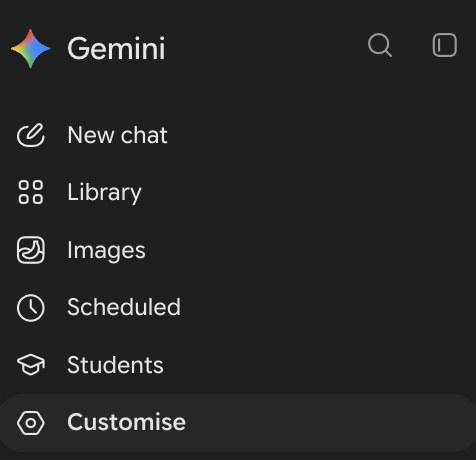
Open Customise
In Gemini, open Customise from the sidebar.
 View full screenshot
 - 2
Add a custom connector
Select Connectors, then choose + Custom on the Connected apps page.
 View full screenshot
 - 3
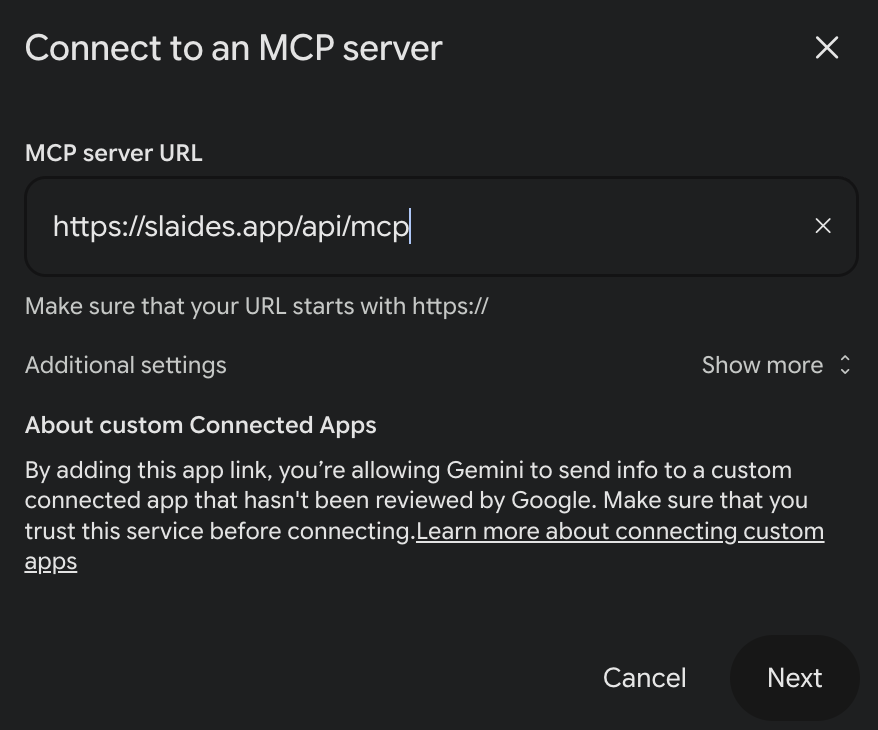
Paste the server URL
Paste the slAIdes server URL below into MCP server URL and select Next. Keep Additional settings at their defaults; client registration is automatic.
 View full screenshot
 - 4
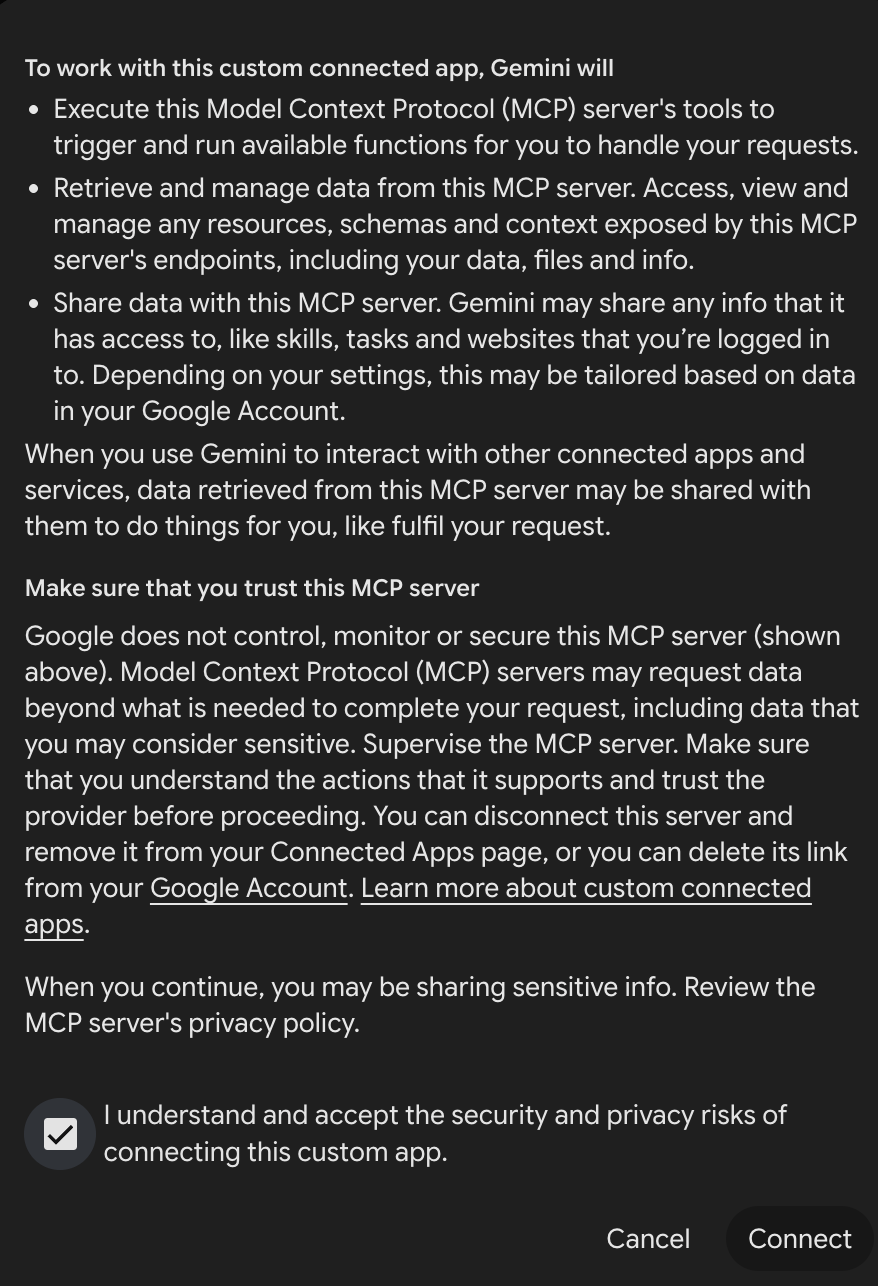
Review and connect
Read Google's permissions notice. If you agree, select the acknowledgement and choose Connect. When prompted, sign in to slAIdes and choose the account you want to connect. Save the custom app as slAIdes if Gemini asks for a name.
 View full screenshot
Once connected, type @slAIdes in a Gemini chat, select your connected app and ask it to create or edit a presentation.