Claude Code setup guide
Your next deck, from Claude Code.
Install the slAIdes plugin to create and edit native presentations from Claude Code. Connect your account once, then open the results in the slAIdes editor.
You’ll need Claude Code installed and signed in, plus a slAIdes account with MCP access. These commands run in an interactive Claude Code session on your computer.
Get Claude Code- 1
Add the slAIdes marketplace
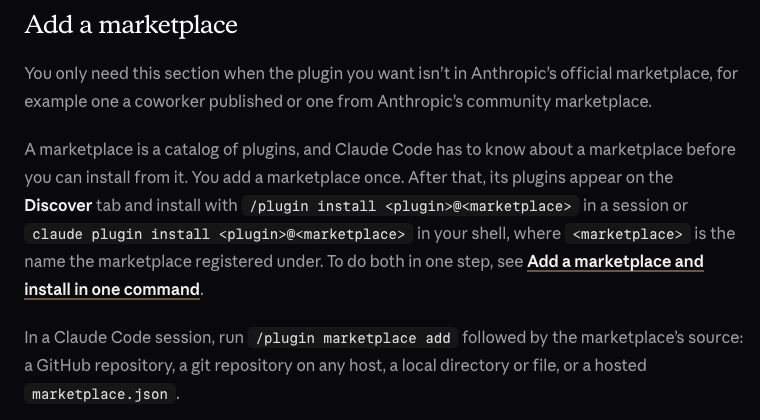
Start an up-to-date Claude Code in your terminal with claude. Run this command inside the session to add the marketplace hosted on the slAIdes website.
/plugin marketplace add https://slaides.app/plugins/marketplace.jsonRun inside Claude Code.
 View full screenshot
Anthropic’s marketplace instructions. Read the official guide - 2
Install the plugin
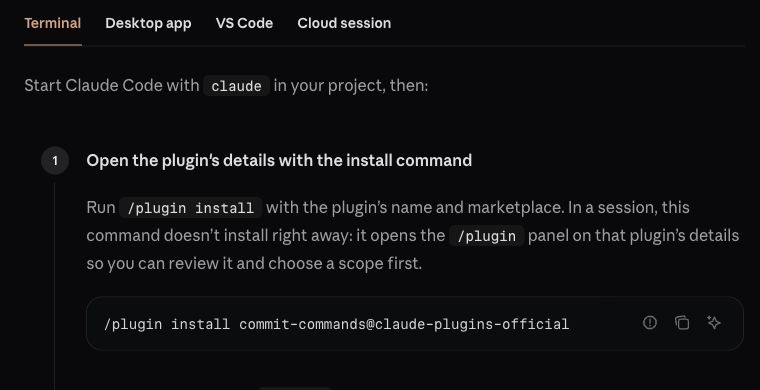
Run the install command, review the plugin and choose user scope to use it across your projects. Follow any reload prompt, or start a new Claude Code session after installation.
/plugin install slaides-mcp@slaidesRun inside Claude Code.
 View full screenshot
Anthropic’s installation instructions. Its example uses a different plugin; install slaides-mcp here. Read the official guide - 3
Sign in to slAIdes
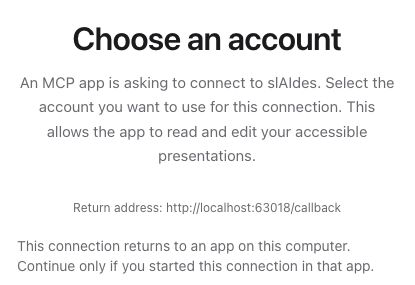
Open /mcp, select the slAIdes server from the installed plugin and choose its authentication option. In the browser, sign in to your slAIdes account, review access and confirm the connection. Return to Claude Code and check the server is connected.
/mcpRun inside Claude Code.
 View full screenshot
The slAIdes account selection screen shown during Claude Code sign-in. Read the official guide
Ask for your first deck
Try: “Use slAIdes to create a six-slide presentation about our product launch. Inspect the saved slides and give me the editor link.” Your deck stays editable in slAIdes, and you can return to Claude Code for changes.
The plugin supplies the MCP server URL automatically: https://slaides.app/api/mcp. Sign-in uses OAuth; no API key or client secret is needed.
In the Claude Code desktop app, use a local or SSH session in the Code tab. After adding the marketplace, open the + menu beside the prompt, choose Add plugins (or Plugins → Browse plugins) and select slaides-mcp. If installation fails, open /plugin and check its Errors tab. If sign-in is cancelled or expires, return to /mcp and authenticate again.